Enlighten Pro gives you a catalogue, a live trade price list, a product page for every family, a quotation builder and a photometric simulator — all on one website, all on your phone. This guide covers the whole thing. Sign in to read it, and start by putting it in your own language.
Enlighten Pro manufactures architectural LED lighting in Mumbai. Every tool described here is included with your partnership — there is no software fee and nothing to buy.
Everything we have built, we built for the partner who sells us.
Enlighten Pro is an architectural LED manufacturer in Mumbai. We do not sell around our channel — we sell through it, and everything on this page exists to make that a better business for you than carrying a brand that treats you as a reseller.
All of it is included. There is no software fee, no subscription and no minimum to unlock any of it.
Your trade price, live
Not a PDF someone emailed you in March. Your own approved rate, on every product, updated the moment it changes — on your phone, in the showroom, in front of the customer.
Quotations in your name
Build a quotation in under a minute and send it on WhatsApp before the customer leaves. It goes out on your letterhead, with your bank details and your payment QR — not ours. Use the same document as a purchase order to us.
Datasheets that win specifications
Generate a four-page technical datasheet for any fitting — polar curves, lux levels, dimensions, compliance — submission-ready for a consultant, and issued in your name as an authorized channel partner.
Photometric simulation and IES files
Answer "will it give me 300 lux at the desk?" yourself, on the spot, and hand the consultant an IES file for DIALux or Relux. Most dealers have to ask the factory and wait two days.
Your account, from our books
What you have bought, what is outstanding, how old each invoice is, and what is still to be despatched — read straight out of our accounting system. No phone call, no waiting for someone to send a statement.
Your projects, protected in writing
Register a project and it is yours. A customer who calls the factory directly is sent back to you. And if our own system ever fails you, we owe you a share of that order — written down, not promised.
Our commitment
The part most brands will not put in writing.
Every manufacturer says it respects its channel. Ours is a published document with numbers in it — the Channel Partner Charter. It sets out what happens when a customer goes around you, when two partners land on the same project, and what we owe you when we get it wrong.
Route-back. A customer on your registered project who contacts us directly is sent back to you. We do not quote them.
Approval earns the account. Get us onto the approved-makes list and the client is yours — including repeat orders placed from other cities.
We co-sell, you bill. On accounts that need a factory audit or vendor registration we come with you; the commercial relationship stays yours.
A penalty pointed at us. If your registered project gets supplied and you earned nothing from it, we credit you a share of the billed value. You do not have to fight for it.
Everything on this website can be read in seven Indian languages — Hindi, Gujarati, Marathi, Tamil, Telugu, Kannada and Malayalam — as well as English. Set it once and every page follows, on every visit.
ENLIGHTEN PROEnglish
English
हिन्दी
ગુજરાતી
मराठी
தமிழ்
తెలుగు
ಕನ್ನಡ
മലയാളം
The globe button sits at the top of every page. Tap it and pick your language from the list.
Look for the globe at the top of the page. On a phone, open the menu first.
Tap it. A list opens with each language written in its own script.
Tap your language. The page reloads and everything is in that language.
It remembers. Once you sign in, your language is saved to your account, so a new phone or a new computer opens in your language straight away. You can change it whenever you like from the same globe.
Product codes, wattages, sizes and prices stay in English and in figures everywhere — those are the same on your invoice, on the carton and in your customer's drawing, so we never translate them.
02
Find the right fitting in seconds.
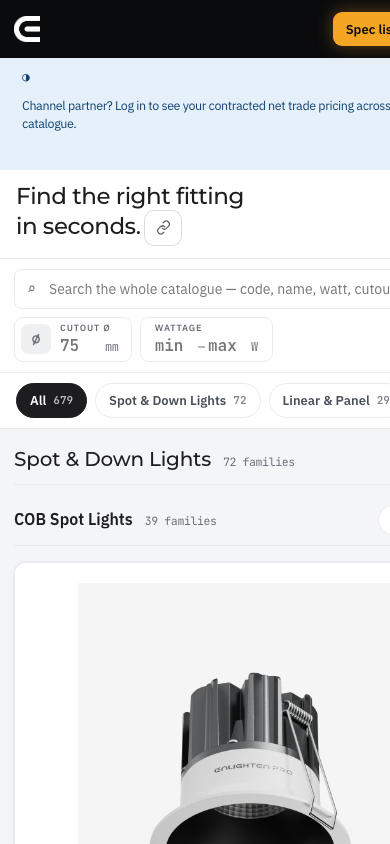
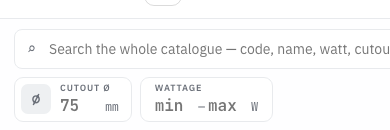
The catalogue holds every family we make. You do not have to scroll it. The fastest way in is the cutout finder — type the size of the hole you are filling and only the fittings that drop into it remain.
1
Open Catalogue from the top menu.
2
Type the cutout diameter in millimetres. The list narrows immediately.
2
The cutout finder sits right under the search bar — the fastest way in.
3
Add a wattage range if you need one, or pick a category from the row of chips.
3
4
Use the search box for a code or a name you already know — for example EN-SP01.
Searching and categories replace each other. Typing in the search box clears the category, and picking a category clears what you typed. That is deliberate — you never end up with a filter you forgot about hiding half the results.
03
Everything about one family, on one page.
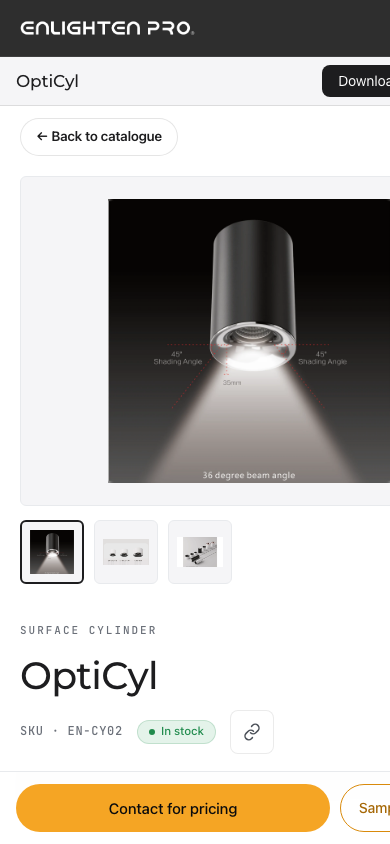
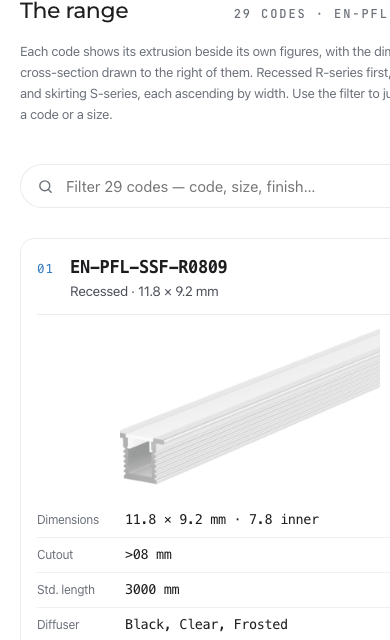
Tap any tile in the catalogue to open its product page. Where a family has several sizes or codes, they are all on that one page — each with its own photograph or drawing and its own figures, so you never have to work out which row belongs to which picture.
The range — every model in the family, with sizes and wattages beside its own image.
Specifications — the technical table. Values are typical for the family; ask us for the certified figures on a specific variant.
Downloads — datasheet, photometry and installation guide. Tap Request and it comes to you on WhatsApp.
Compliance — the certifications that apply to that product.
Samples and pricing — the two buttons beside the images. Both open WhatsApp with the product already named, so you never have to explain which one you mean.
›
Long families have a filter. Where a family runs past a dozen codes, a search box appears above the range. Type a code, a size or a finish and it jumps straight to it.
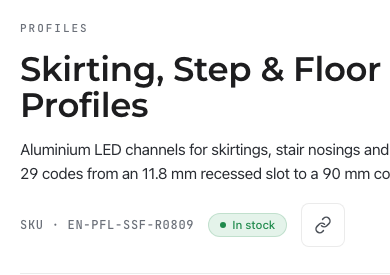
Every page has a copy-link button — the small chain mark beside the page heading, and on each tile in the catalogue. Tap it and the address is on your clipboard, ready to paste into WhatsApp, an email or a drawing.
›
The chain mark beside a page title copies that page's address.
The customer sees the product with its photographs and specifications — but never your trade price. Prices only appear once you are signed in, on your device.
On a phone the same button opens the share sheet, so you can send it straight into a WhatsApp chat without pasting anything.
The rest of this guide is for partners.
Everything below shows how each of these tools actually works, step by step. Sign in and it opens up — no second password, no separate account.
Already signed in on this device? Give it a moment — this page opens on its own.
Why this beats the PDF
If you're still emailing your customer a 60-page PDF, you're losing the sale.
PDFs go stale the day after Enlighten Pro changes a price. They don't filter. They don't quote. They don't reach WhatsApp. Here's the side-by-side.
What dealers actually do
Old PDF pricelist
This CPL
Show a customer the trade price for a 12W COB downlight
Scroll through 60 pages, hope it's the latest version
Type "12W" in search — see all variants and your net price
Build a quote for 5 different SKUs and send it
Type into Excel, copy-paste images, print, scan, email
Tap "+" on each row, hit "Share on WhatsApp" — done in 30 seconds
Filter by ceiling cutout the architect specified (75mm)
No way — read every page
Cutout filter → "Exact 75" → only matching SKUs show
Get the latest prices after Enlighten Pro updates rates
Wait for someone to email you a new PDF
Open the page — it's already current
Customer asks "what does this look like?"
Hunt for a separate brochure
Each row has the product image inline, plus a link to the full product page
Use it on a phone in someone's office
Pinch-zoom a PDF, give up
Native mobile layout — chip filters, family cards, big tap targets
Quick start
Three things to know on day one.
1
Sign in once, stay signed in
You log in with your dealer email and password. The browser remembers you — both on Mac and iPhone — so future visits skip the login screen entirely.
Persistent across visits
2
Your discount is already applied
The "Net" column on every row shows your trade price after your approved discount. The "List" column is the customer-facing MRP. No mental math, no spreadsheets.
Two prices, one row
3
Click a product to see every variant
Clicking anywhere on a product row opens it up — every wattage, size, cutout and price underneath, in one table. Click again to close it. Adding to your quote is the + Add button; once it's in, that button turns into a quantity stepper with a ✓ so you can see at a glance what's already on the quote.
Click = open · + Add = quote
Features worth using
Six controls that turn the price list into a sales tool.
★
Favorites
Click the ☆ on any row. The product joins a ★ Favorites chip at the start of the category strip. Use this for the SKUs you quote every week — your "shortlist" is one tap away.
⏱
Recent
Every product you click is logged into the ⏱ Recent chip. Forgot which 4W track light you were just looking at? It's there, pre-sorted by most-recent.
🧮
Add-ons calculator
The 🧮 button on each row opens the upgrade calculator: branded LED, branded driver, body-colour change. Tick what the job needs and the price updates live — at your rate, not MRP — then send it straight to the quote with the upgrades attached.
+
Custom items in the QB
Need to add a line that isn't in the catalog (cable, installation, custom finish)? In the QB, hit + Custom. Type name, description, price, qty — it ships with the rest of the quote.
⇕
Comfortable / Compact
The toolbar toggles row density. Comfortable gives you big product photos — good in a showroom. Compact squeezes far more rows onto one screen — good when you're scanning a long category for a price.
📖
This guide
The book icon next to your name takes you here. If you're ever stuck on a feature, this guide is one tap away — including from the dealer dashboard on your phone.
On the website
Your trade prices follow you across enlighten.biz.
When you're signed in, every product page on the public website automatically shows your dealer pricing — alongside the product photo, datasheet, IES file, dimensions. Your cart syncs back to the CPL.
On a product page (desktop)
Go to any product on the website (e.g. /product.html?slug=en-sp01-orion) — your dealer pricing block injects above the public CTAs. Each variant has a "+ Add" button to drop into your QB.
enlighten.biz/product.html?slug=en-sp01-orion
Product image
Cob spot light
EN-SP01 Orion
SKU · EN-SP01 · IN STOCK
CHANNEL PARTNER PRICING · 45% OFF · MOQ ELIGIBLE
Power
Body
List
Net
5W
WH
₹900
₹495
+ Add
9W
WH
₹1,300
₹715
+ Add
15W
WH
₹1,800
₹990
+ Add
1Dealer block — only you see it
Floating quote pill
Bottom-right of every product page — a black pill shows your live cart count. Tap it once: a popover slides up showing every line in your quote. Tap again: it folds back. Tap "Full quote →": you're in the CPL with the QB open.
EN-SP01 product photo
COB SPOT LIGHT
EN-SP01 Orion
Architectural cob spot light from Enlighten Pro.
Pwr
Net
5W
₹495
+Add
9W
₹715
+Add
📋 Quote
3 lines▴
2Tap to open the cart
Build the whole quote here
You don't need to open /cpl/ at all.
Most quotes mix Enlighten Pro lights with non-Enlighten items — a third-party driver, a COB LED module, cabling, install labour. Tap the floating 📋 Quote pill on any product page, then hit + Add a custom item at the bottom of the popover. Type a name, a price, a quantity. It joins the same quote as the Enlighten lights, syncs across tabs, and ships in the same WhatsApp message.
1On the product page, tap the floating 📋 Quote pill
2Scroll to + Add a custom item at the bottom
3Type the name, price, qty — hit Add to quote
4Hit Share on WhatsApp — that's the whole quote, sent
💡Note on pricing: Custom items are passthrough at the price you type — your Enlighten dealer discount doesn't apply, since these aren't Enlighten Pro stock. Type the price the customer should see for that line. The Enlighten lights still get your discount automatically.
Quotation Builder
3 LINES · 45% OFF
✕
EN-SP01 Orion
EN-SP01 · 12W
−20+
₹1,800 list · ₹990 net
₹19,800
✕
Dimmable LED driver · 50W Custom
220V dimmable, 5-yr warranty
−4+
₹1,250 each
₹5,000
✕
COB LED module · 30W Custom
3000K, 90 CRI, 30W
−25+
₹460 each
₹11,500
✕
★Drivers, LEDs, install
Subtotal₹36,300
GST (18%)+₹6,534
Total₹42,834
Full quote →
🔒Privacy: the dealer pricing block is only ever visible when you're signed into the CPL on this browser. A customer browsing the same product page without your login sees the regular public site — no prices, no widget, no leaks.
See where the light lands, before anyone buys a fitting.
Every client asks the same question — will it be bright enough? The photometric simulator answers it with numbers instead of opinions. Pick a fitting, describe the room, and it shows you the light.
1
Open the Photometric Simulator — it works on the same sign-in as everything else here.
2
Answer three quick questions: which fitting, what room, what mounting height.
3
Read the result — the lux on the working plane and the beam's polar curve.
4
Download the four-page technical datasheet (PDF), or hand the client's consultant the IES file for DIALux or Relux.
Computed design data at nominal conditions — field results may vary by 15–20%. NABL-certified lab reports and measured IES files are available on confirmed order.
Open the consultant's DWG on your phone. No AutoCAD.
Projects arrive as .dwg drawings, and most of us don't carry AutoCAD. The CAD Workbench opens those drawings in your browser — phone or laptop — on the same Enlighten Pro sign-in. Nothing to install, nothing to buy.
1
Open the CAD Workbench from your account.
2
Drop in the client's DWG or DXF file.
3
Pan and zoom the drawing right there in the browser, in the middle of the meeting.
Message the business number. It answers at midnight too.
Our business WhatsApp — +91 98921 55153 — is answered by Lumi, an assistant that knows the catalogue and your account. Ask it the way you'd ask a person; it replies in seconds, at any hour.
Ask it things like:
“Do you have a 12W COB in black, cutout 75?”
“What's my outstanding?”
Send a photo of fittings and ask “stock of these”.
When something needs a person, a person takes over — or message us directly at +91 93723 99052.
Daily workflows
Three real situations, three minutes each.
Pick the one closest to what you do every day. Numbered tags 1like this point at the key elements on each mock.
Scenario A · In the showroom
Customer asks: "How much for ten 15W ORION spotlights?"
Phone in your back pocket. You don't want to break eye contact for two minutes while you flip through a PDF. You want the answer in five seconds.
1Tap Search and type "EN-SP01" or just "orion 15".
2The Net column shows your trade price (₹990 here at 45% off).
3Set the quantity on the quote — or hit 🧮 first if the job needs a branded LED or driver.
4Show your customer the List price (₹1,800) so they see the gap they're getting.
💡Pro tip: Click the row's image link to open the full product page on the website. Your trade price still shows there — but your customer sees the catalog photo, dimensions, IES files. It's a sales tool, not just a price list.
One row · close-up
🔍 orion 15|
Model
Code
Power
List
Net
Img
ORION
EN-SP01
15W
₹1,800
₹990
+
1Type any part of the SKU, name or wattage2Tap "+" to add
Scenario B · Architect's brief
"75mm cutout. 7–12W. White only. What can you do?"
The architect's already chosen the ceiling. You need to know what fits in their cutout — fast — and only show options that actually make sense.
1Set the Cutout dropdown to "Exact" and type 75.
2Pick the COB Spot Lights chip from the category strip.
3The list collapses to only 75mm-cutout, COB-category SKUs.
4Tap "+" on the 7W and 12W rows. Open the QB. Send the architect a side-by-side quote.
Filtered view
🔍 Search by name, code, category…
CutoutExact75
All768COB Spot121Surface Cyl39Down Lights31
COB SPOT LIGHTS (2 matching)
Model
Code
Power
Cutout
Net
Img
ORION
EN-SP01
9W
75mm
₹715
+
ORION
EN-SP01
15W
75mm
₹990
+
1Cutout filter2Category chip3Only matching rows
Scenario C · Quote → WhatsApp
From "let me check" to "I just sent it" in 30 seconds.
The Quotation Builder is the heart of the tool. It's where the trade price plus your customer's quantity, plus GST, plus any custom additions become a final number you can share.
1Tap Quotation Builder at the top.
2Set qty per row, tweak any custom description.
3Toggle No GST if your customer is invoiced separately, or Hide Discount if you don't want the discount column visible.
4Tap Share on WhatsApp. The message opens pre-filled with the quote text — pick a contact, hit send.
💡Need a printable PDF? The "Generate Quotation" button drops a clean PDF with your dealer name, client name, line items, GST, total, and your reference number. Use it for purchase orders or formal quotes.
📋 Quotation Builder 3 items · 45% OFF
×
Mustafa Safri / Safri Solutions
ABC Architects · Mumbai
ORION EN-SP01
15W · 85mm · WH
₹1,800
₹19,800
×
VEGA EN-SP02
10W · 55mm · WH/BLK
₹2,200
₹14,520
×
LYRA EN-SP03
2×8W · WH/BLK
₹3,400
₹11,220
×
Subtotal (after 45% disc)₹45,540
GST (18%)+₹8,197
Total · 38 items₹53,737
PRICES SUBJECT TO CHANGE · CONFIDENTIAL TO YOUR ACCOUNT
1Add dealer + client name2Qty per row3WhatsApp · PDF · Text
On your phone
Designed for one hand, in someone's office, between meetings.
The mobile layout isn't a shrunk-down desktop. Categories scroll horizontally, products stack as cards, and the quote builder takes the full screen.
Mobile dealer view
Search, filter, browse. The category chips become a swipe-able rail at the top — no more pages of pills eating your screen.
A−|A+Mustafa
Channel Partner Pricelist
45% · MOQ eligible
📋 3
🔍 Search…
Disc%
CutoutAll
All768COB121Down31Track19Lin
COB SPOT (121)
Img
ORION EN-SP01 · 7W · 75mm
₹715
+
ORION EN-SP01 · 15W · 85mm
₹990
+
ORION EN-SP01 · 15W · 85mm
₹1,210
+
1Swipe through chips
Mobile Quotation Builder
Full screen on phones. Item rows stack vertically; the share buttons stay docked at the bottom for thumb reach.
📋 Quotation Builder 3 · 45%
×
ORION 15W
EN-SP01 · 85mm
₹19,800
VEGA 10W
EN-SP02 · 55mm
₹14,520
LYRA 2×8W
EN-SP03
₹11,220
Subtotal₹45,540
GST 18%+₹8,197
Total · 38 pcs₹53,737
📱Pin it to your home screen. In Safari, hit Share → "Add to Home Screen". The CPL gets its own icon, opens like an app, and skips the address bar — useful when you're on the move.
Your account
Every rupee we've billed you, on one page.
You don't have to ring the office to ask what's outstanding. Your dashboard reads straight from our accounts system — the same books we run the business on.
1
What you've bought
Your billing month by month for the last twelve months, your average monthly purchase, and the last five invoices we've received payment against. Useful the week you're deciding whether you've earned the next slab.
12 months · at a glance
2
What's still open
Every pending invoice with its due date and how many days old it is, grouped by age so the oldest is impossible to miss. Plus your average days-to-pay, which is the number we look at when you ask for a longer line.
Invoice · due date · age
3
What's coming
Sales orders we've accepted but not yet billed. Click any order to open it and see the line items — so "where is my material" is a question you can answer yourself, at 11pm, without calling anyone.
Click to open items
💡It is not a report someone remembers to send you. The figures are pulled live when you open the page. A payment you made this morning shows up this morning — there is no overnight sync to wait for and nothing to refresh by hand.
Your certificate is on the same page
The dashboard is also where View certificate lives — your authorisation on an A4 sheet, in your firm’s legal name, with a QR code anyone can scan. Print it once and frame it.
One click · A4, framable
Who else can open it
Our sales and accounts team can, because answering “what is outstanding?” is their job. No other role can, and no other partner can. The bank details you save for your own quotations are not part of it — that record answers only to your own login.
Your ledger · not your bank details
Proof
A certificate you can frame — and anyone can check.
Your authorisation, on an A4 sheet, in your firm's real legal name.
1Open your dashboard and choose View certificate.
2Print it, or save it as a PDF. It comes out as a true A4 page — put it straight in a frame.
3The name and GST number on it are the ones in our books, not anything typed at sign-up. That is what makes it worth something.
🔎The QR code is real. Anyone — your customer, an architect, a purchase officer — can scan it and land on a page hosted by us that confirms you are an authorised channel partner, your region, and that your authorisation is current. That page shows your partner status and nothing else: never your clients, never your projects, never your pricing.
Protection
Lock the project before you pitch it.
The single most useful minute you will spend on a job — because it is the minute that decides who it belongs to if it is ever contested.
1Register the site or project with the client's name, the city, the consultant or architect if there is one, and roughly what you expect to supply.
2First to register holds it. The timestamp decides — not a phone call, not who has been with us longer.
3A registration stays live for 120 days and renews itself every time there is activity: an updated BOQ, a site visit, an approval. Dead claims lapse on their own, so nobody can park a rumour on a project to block you.
4Register honestly. Locking projects you are not actually working is a breach of the charter.
🤝If two partners land on the same job, neither of you walks away with nothing. The partner who registered first keeps a spec credit even if the other one ends up supplying — which is what turns a collision into a phone call instead of a fight.
A
A project is a site
One building, one job, one BOQ. Registering it puts your name on that site from the moment you register until 120 days after the last activity on it. This is the protection you reach for when you are about to spend a fortnight on a drawing set.
First to register · 120 days
B
A client is a company
Two things turn one job into the whole account. Getting us onto the client’s approved-makes list does it. So does the account crossing ₹10,00,000 of billing with us in a financial year — and that is the client’s total across all their sites, not your own purchases from us. After that the client is yours wherever they build next, including sites you never registered and cities you do not cover.
₹10,00,000 · the client’s total, not yours
📞Route-back is the part you will actually notice. When somebody from a protected client rings our office for a price, they are told we work through you, and they are given your number. We do not quote them and we do not quote around you. And if a registered job of yours is supplied anyway without you earning from it, we owe you a credit note for 5% of what was billed — you do not have to chase it.
Your quotations
Quotations that go out in your name, not ours.
Set it up once. After that every quotation and every datasheet you generate carries your firm — your letterhead, your bank details, your payment QR.
1
What you fill in, once
Your address, phone and email, your bank account and IFSC, your UPI ID, and a photo of your payment QR. It takes about two minutes and you never have to do it again.
Two minutes · once
2
What you can't change
Your firm's name and GST number come from our books and are shown to you read-only. That is deliberate — a document that verifies as ours is only worth something if the name on it isn't self-declared.
From our records
Making one takes about a minute
1In the price list, press + Add on any fitting. Add as many as you like, set the quantities, override a price, or type your own description on a line.
2Put in the client’s name and a reference. Your own firm is already there — you never type it, and you cannot mistype it.
3Generate opens the print dialogue, so you can save a PDF. Share makes an image of the same document and hands it straight to WhatsApp — on a phone that is the share sheet, on a computer it goes to your clipboard to paste into WhatsApp Web.
4Send that identical document back to us as your purchase order. Same lines, same numbers, nothing re-typed and nothing lost between what you quoted and what you ordered.
🛡️Every document is marked and checkable. Your firm's name is watermarked faintly across the page, and there is a QR code that verifies you as an authorised channel partner. If a quotation of yours gets shopped around, anyone who scans it sees whose work it is.
The charter
The promises behind all of this.
The dashboard, the certificate and the project register are the machinery. The Channel Partner Charter is what they are there to enforce — written down, in one place, so you are not relying on anybody's memory.
What Enlighten Pro commits to
Route-backA customer on your registered job who calls us directly is sent back to you — we don't quote them
Your regionInquiries reaching us from your region are routed to you
Approval earns itGet us on the make list and the account is yours, including repeat orders from other cities
Large accountsWhere a factory audit or vendor registration is needed, we co-sell alongside you — you still bill
If we slipA registered job billed without you earning anything obliges us to credit you 5% of its value as a journal voucher
Sub-dealersBuild your own network under your umbrella — their business is credited to you
What you commit to
Register earlyAnd register honestly
Service the clientDelivery, installation support and warranty to our standards
Respect the registerAnother partner's registration is theirs
Hold the priceStay inside the agreed pricing structure
📜Read the whole thing:enlighten.biz/charter. Twelve clauses, plain English, including exactly how a contested project is settled and what we owe you when our own system fails you. The English version is the authoritative one.
Cheat sheet
Print this. Tape it to your laptop.
On the price list
Click rowOpen every variant + price
+ AddAdd to your quote
– 2 +Already on the quote · change qty
☆Mark as favorite
🧮Add-ons calculator (at your rate)
▼ was ₹XPrice changed recently — old rate
↗Open product page
+NMore variants — click to open
📋 (top)Open quotation builder
Filtering
SearchName, code, power, anything
CutoutExact / < / > / range (mm)
ChipsTap a category to narrow
★ FavoritesYour saved shortlist
⏱ RecentAuto-tracked browsing
⇅ Price changesMoved in the last 10 days
Sharing
WhatsAppPre-filled message
PDFFormal quote with header
TextCopy plain text to paste
Hide colsHide price/discount column
No GSTStrip 18% off the total
Common questions
Quick answers, in plain English.
Why am I getting logged out on my iPhone?
You shouldn't anymore. We added a long-lived session cookie that survives Safari's storage cleanup. If it ever happens, just sign in once and you're set for a year. Force-quit Safari (swipe up from the app switcher) and reopen the page if it feels stale.
What if Enlighten Pro changes a price?
You see the new price on your next visit. There's no PDF to redownload, no re-issue, no "old version still floating around." The page is the live source of truth.
Can my customers see my dealer pricing if I share a screenshot?
Only the screenshot you took. Sending them the URL won't give them your pricing — the dealer block only renders for browsers signed into your CPL account. Treat your login as confidential; a "do not redistribute" notice is shown above every dealer price block.
I want to add something that's not in the catalog (driver, LED module, cable, install). How?
Two places work: Inside /cpl/ — open the Quotation Builder and hit + Custom. Or on any product page — tap the floating 📋 Quote pill, scroll to the bottom of the popover, and hit + Add a custom item. Either flow asks for name, price, qty (and an optional description). The custom line joins your quote and ships with the rest of it via WhatsApp / PDF / Text. Custom items are passthrough — your Enlighten dealer discount doesn't apply to them, since they aren't Enlighten Pro stock.
The quotation says "Approved discount: 45%". Can it be different?
(The 45% in this guide's screenshots is an invented example, not anyone's actual rate.) Your approved discount is set by the Enlighten Pro admin team when your account is created — every dealer's rate is set individually based on their relationship and order volume. If you need a different rate for a specific quote (a one-off project bid, for instance) you can override the Discount % field at the top of the page; your default rate is restored on the next visit.
How do I know if a price has changed?
Any product whose price moved in the last 10 days carries a marker next to its net price:
▼ was ₹1,120
if it came down, ▲ was ₹880
if it went up. The figure shown is the old price at your rate, so it lines up with the price beside it — no conversion in your head.
Hover it (or long-press on a phone) for the date it changed and the MRP before and after.
When anything has moved, a ⇅ Price changes chip appears at the front of the category strip with a count — one tap shows only those products.
The chip disappears when nothing has changed recently, and each marker clears itself after 10 days. So if you quoted a product last week, one look tells you whether the number you gave is still good.
What's "MOQ pricing"?
MOQ prices are special rates on selected products, released against committed order quantities. They are not a blanket discount and they do not apply across the whole catalogue — which SKUs qualify, and at what quantity, is agreed account by account. If your account is MOQ-eligible you can toggle MOQ Pricing in the Quotation Builder to apply it to a quote. For what qualifies on your account, talk to your Enlighten Pro contact or message support on WhatsApp.
Can I print the whole price list?
Yes — there's a Print PDF button at the top right of the dealer view. It generates a print-friendly version with your discount applied, ready for the printer or PDF export. But honestly, once you start using the live page, you stop wanting the PDF.
Who do I tell about a missing product or wrong price?
WhatsApp the floating green button at the bottom-right of any page. Goes straight to +91 93723 99052.

 2
2
 3
3
 4
4
 ›
›
 ›
›
